Bulk Rename & Clean Multiple Files in Google Drive
Remove "Copy of", strip (1) counters, prepend YYYY-MM-DD dates, or number files 001–999 right inside your Google Drive side panel.
Live Before → After Preview (Nothing Changes Until You Click Rename)
| Messy Google Drive Filename (Before) | Recipe Used | Clean Filename (After) |
|---|---|---|
| Copy of Q3_Invoice_FINAL_v2 (1).PDF | Clean |
Q3_Invoice.pdf |
| Copy of Copy of Client_MSA_Signed (1).DOCX | Add date |
2026-10-25_Client_MSA_Signed.docx |
| IMG_8812 (1).JPG | Number (001) |
Product_Shoot_001.jpg |
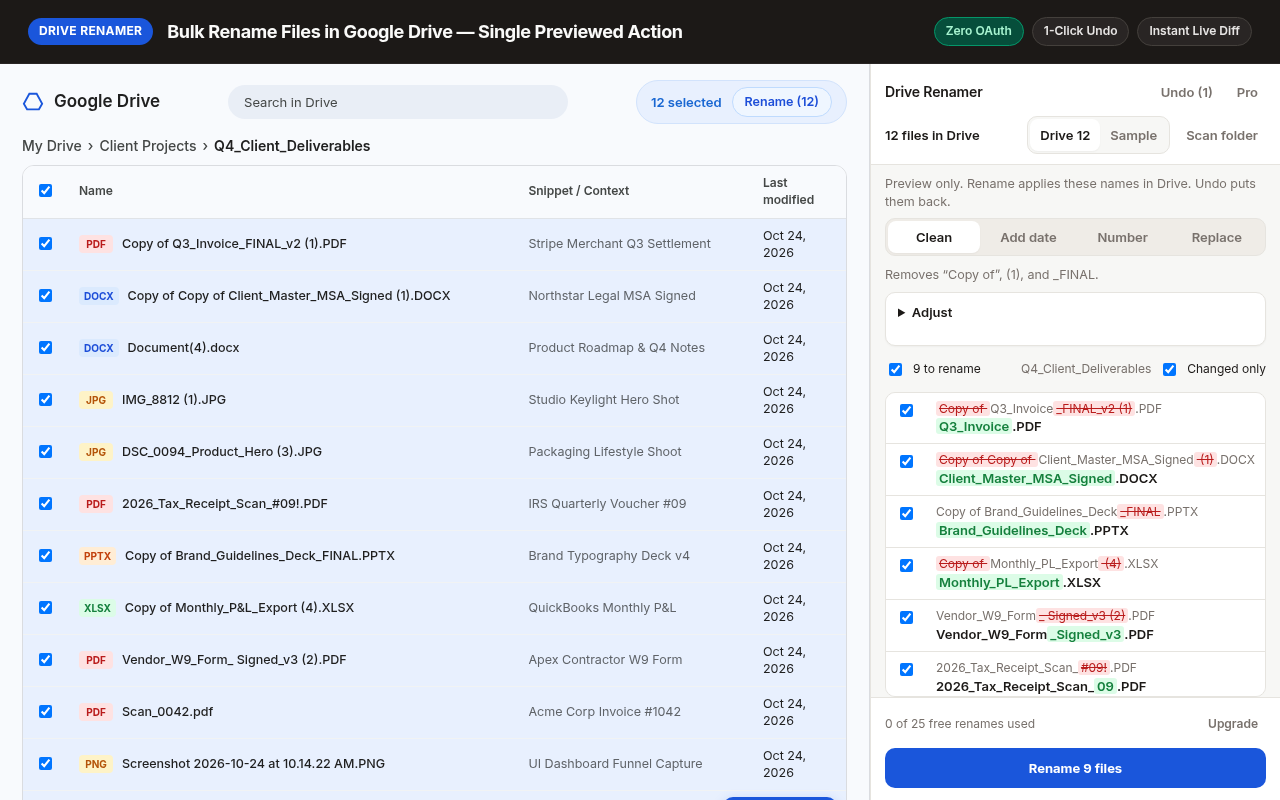
1. Inspect every filename change side-by-side in the Chrome Side Panel before applying.
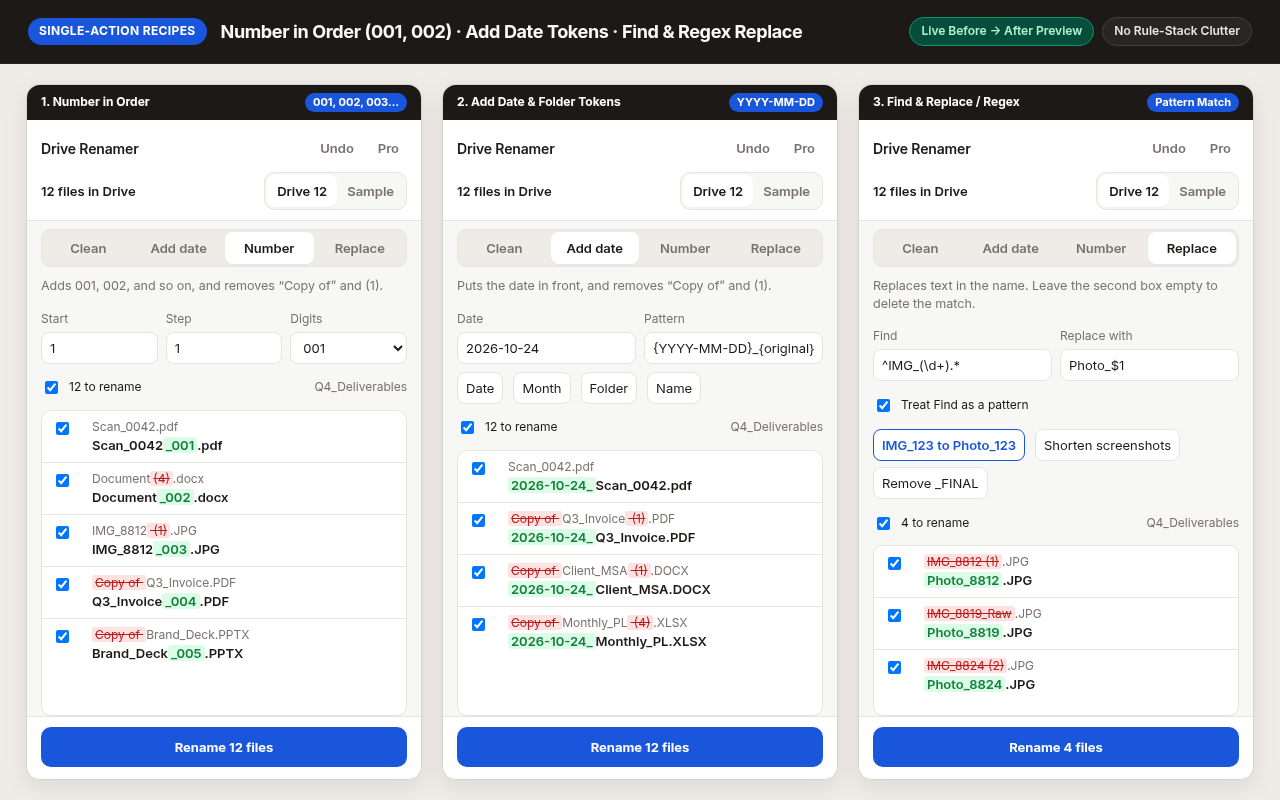
2. Use 1-click Clean, Add Date, Sequential Numbering, or Regex patterns.
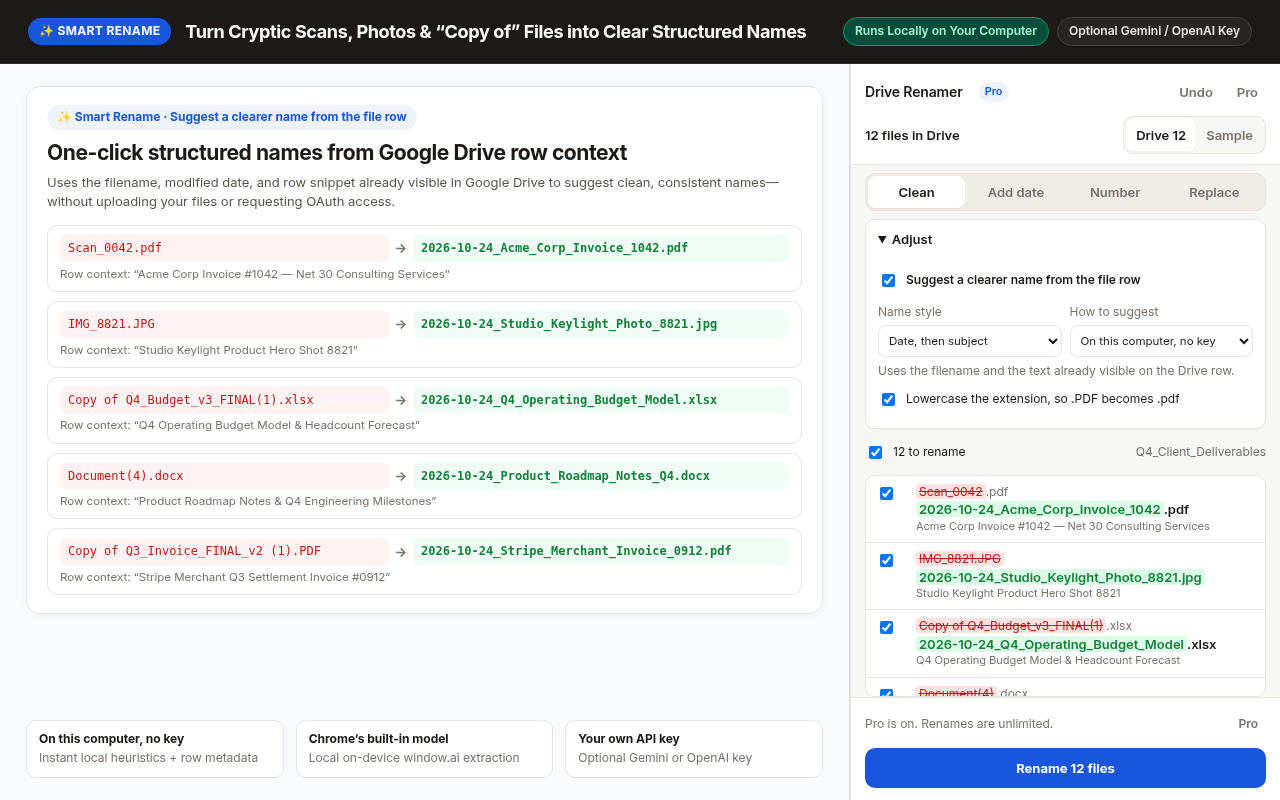
3. Every batch is saved in your local Undo history for instant 1-click rollback.
Frequently Asked Questions
How do I bulk rename files in Google Drive?
Install Drive Renamer from the Chrome Web Store, open any Google Drive folder, click the extension icon to open the Side Panel, pick a recipe (Clean, Add date, Number, or Replace), check the live preview table, and click Rename.
How do I remove "Copy of" from multiple files in Google Drive?
When you duplicate files in Google Drive, every file gets Copy of added to the start. Open Drive Renamer, select the default Clean tab, and press Rename to strip Copy of and (1) from every selected file at once.
Does Drive Renamer require OAuth access to my Google Drive?
No. Drive Renamer runs inside your active browser tab with zero OAuth permissions, making it safe for personal and strict corporate Google Workspace accounts alike.